
High swap space usage message on Zabbix dashboard
The “Linux: High swap space usage (less than 50% free)” notification in Zabbix is a classic warning sign for system administrators. Swap acts as a safety net when system RAM runs low. In this article, I will explain how to fix the Zabbix High swap space usage warning on a Raspberry Pi 5, adjust the kernel’s vm.swappiness parameter, and safely flush cached swap data back into RAM without taking your server offline.
While swap itself is a useful and necessary mechanism, its active use signals that the server is working at the limit of its capabilities, since the speed of the disk (even fast NVMe, not to mention SD cards in single-board computers) is hundreds of times slower than the speed of RAM.
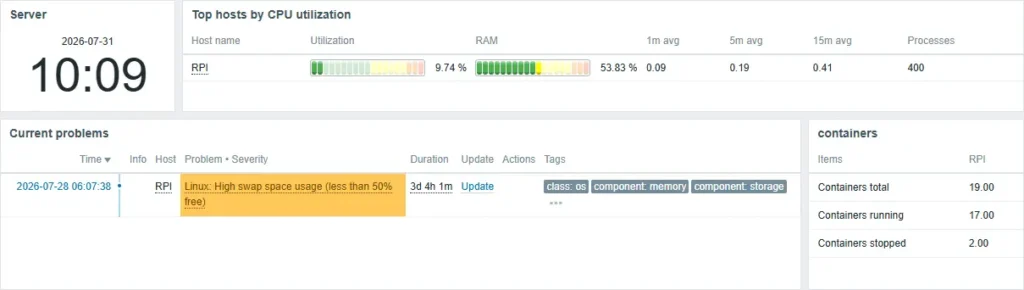
The Zabbix dashboard shows that my Raspberry Pi 5 8 GB is almost not loaded, so I need to figure out the reason.
Hardware Monitoring: Alongside RAM and swap metrics, keep an eye on your board’s thermal behavior by monitoring Raspberry Pi CPU temperature with Zabbix.
Current values and the reason why this happens
Let’s see this value directly on the host by running the htop command

The system has allocated 2GB for swap, of which 1.3GB is used, which is of course more than 50% and which Zabbix has honestly reported. Now we need to analyze who is the source of this swap.
By default, Zabbix generates a High trigger when the amount of free space in swap drops below 50%.
Main reasons:
- Aggressive kernel behavior (Swappiness): Most Linux distributions have the vm.swappiness parameter set to 60 (from a range of 0-100). This means that the system will start preemptively swapping cached or inactive data to swap long before RAM is completely exhausted.
- “Heavy” containers and services: Modern infrastructures often rely on the Docker stack (e.g. Nginx, databases, WordPress with plugins). If containers are not given strict memory usage limits, they can gradually “eat” all available RAM and crowd out other processes in the swap.
- Memory Leaks: Some applications or background scripts may incorrectly free memory after completing their operations, gradually bloat in size and force the system to dump the remaining data to disk.
Container Metrics: Heavy containers often push host memory into swap; track their resource usage with my guide on monitoring Docker container activity in Zabbix
Swappiness value
As mentioned earlier, the system defaults to 60. You should check if this is the case by running the following command:
cat /proc/sys/vm/swappiness
60
Swappiness is a Linux parameter (from 0 to 100) that determines how actively the kernel transfers data from RAM to a swap file or partition.
In my case, I need to reduce the Swappiness value from 60 to 10, for example, so that the system can use RAM longer without touching swap. This can be done with the command
sudo sysctl vm.swappiness=10
vm.swappiness = 10
Also write down this value so that it is applied at the kernel level after reboot. In the case of my system, the general settings are stored in the file 98-rpi.conf in the /etc/sysctl.d directory. In order not to make adjustments to the original configuration file, you can simply create a new custom configuration that will be loaded after the main one:
echo "vm.swappiness=10" | sudo tee /etc/sysctl.d/99-swappiness.confWe apply the settings without reloading the parameters and without rebooting the host by executing the command:
sudo sysctl --system
...
vm.swappiness = 10
Swap Cleanup
If you see that physical memory (RAM) is now sufficient, and swap is simply clogged with old data that the kernel is in no hurry to return, you can forcibly move it to RAM.
Do this only when the amount of free RAM is guaranteed to exceed the amount of used swap!
sudo swapoff -a && sudo swapon -aThis command will disable paging, move data back to RAM, and enable it again.

The screenshot shows that the Swap value of 1.3 Gigabytes has moved to RAM, which has increased accordingly. Also, a trigger has been triggered in the Zabbix interface, and the message has disappeared.

Conclusions
After running swapoff -a && swapon -a and setting the vm.swappiness=10 parameter, the “High swap space usage” message in Zabbix will disappear and the monitoring graphs will return to a stable green zone.
Zabbix Hardening: Once your metrics are back in the green, protect your dashboard by learning how to restrict access to Zabbix via Apache
The swap file is an important security tool to prevent system crashes, but it should not be used as an extension of RAM for regular work. Reducing the kernel’s aggressiveness towards the swap file (swappiness=10) and managing resources wisely will ensure fast, stable and predictable operation of your IT infrastructure.