How to turn the chaotic updating of dozens of Docker containers into a streamlined process? In this article, we explore the installation and detailed configuration of What’s Up Docker (WUD) on Raspberry Pi 5. From resolving authorization errors and Docker Hub limits to fine-tuning tag regex and email notifications. A guide for those seeking full control over server security without the risks of blind automation.
Introduction
Why monitor Docker container versions? When you have one or two containers, keeping track of them is easy. But when a home server turns into a real “data center” (in my case – a mail server, Zabbix, WordPress, databases, and a bunch of auxiliary services), manual checking becomes extremely resource-intensive.
Why is it important to know about new versions?
- Security: Most updates patch critical vulnerabilities.
- Stability: Bug fixes that can optimize services on my Raspberry Pi.
- Functionality: New features (like Zabbix moving to a new major version).
However, there’s a catch: automatic updates are a risk. One “dropped” image or a database version conflict can take down the entire service. Therefore, a tool is needed that sees everything but touches nothing without permission.
WUD (What’s Up Docker)
WUD is a lightweight and elegant tool for monitoring container versions. Unlike aggressive tools that try to update everything at once, WUD follows a philosophy of common sense and total control. Its main task is to be your eyes in Docker repositories. It automatically scans all running containers, compares their versions with official registries, and provides a clear verdict in a beautiful web interface.
The user doesn’t just get a dry list, but a visual dashboard where it’s immediately obvious which service is stuck in the past and which is ready for an upgrade. One of the advantages is that it’s incredibly lightweight (critical for Raspberry Pi) and supports a vast number of notification methods. It’s the perfect solution for those who want to keep their finger on the pulse of updates but aren’t ready to trust automation with the fate of their databases or complex mail configurations.
Running WUD
Installation takes only a few minutes. Since I work on a Raspberry Pi 5, it’s important for me that the service remains lightweight. We will launch it via a docker-compose file with the following basic content:
services:
  whatsupdocker:
    image: getwud/wud
    container_name: wud
    volumes:
      - /var/run/docker.sock:/var/run/docker.sock
    ports:
      - 3000:3000
  restart: unless-stopped
The result will be as follows:
docker compose up -d
[+] up 16/16
 ✔ Image getwud/wud    Pulled
 ✔ Network wud_default Created
 ✔ Container wud       Created
Now you need to check if the container is running:
docker compose ps
NAME      IMAGE        COMMAND                  SERVICE         CREATED              STATUS                        PORTS
wud       getwud/wud   "/usr/bin/entrypoint…"   whatsupdocker   About a minute ago   Up About a minute (healthy)   0.0.0.0:3000->3000/tcp, [::]:3000->3000/tcp
Docker Hub Authorization
While writing this article, I encountered several errors, one of which was Request failed with status code 429. This happens when WUD sends too many requests without authorization. To fix this, simply authorize on Docker Hub with your username and password by adding two environment variables to the docker-compose file:
environment:
  - WUD_REGISTRY_HUB_PUBLIC_LOGIN=username
  - WUD_REGISTRY_HUB_PUBLIC_PASSWORD=password
After restarting the container, authorization will occur and the error will disappear.
Dashboard
After launching, navigate to http://<server_IP>:3000 in your browser. A list of all containers will appear on the main screen. WUD automatically checks local image versions against those available online.
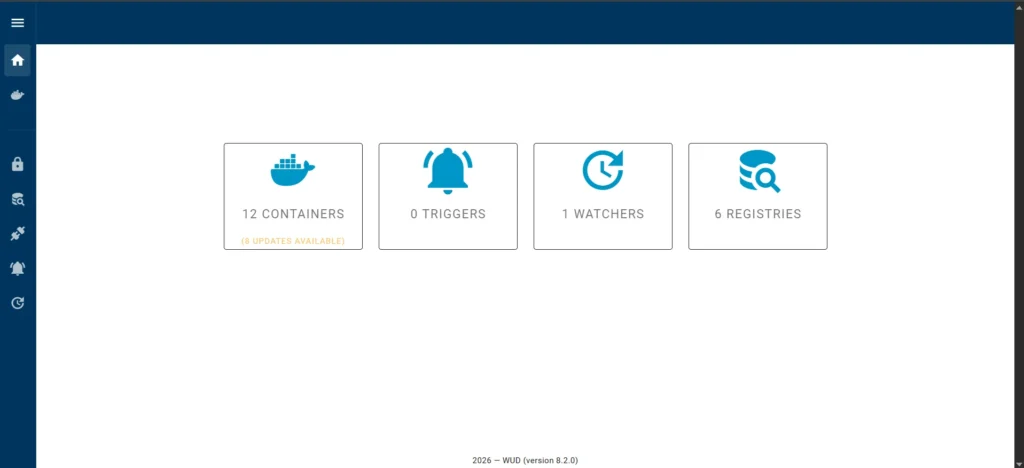
After the first launch, I see a minimalist and informative dashboard. It is not overloaded with unnecessary graphs, but immediately answers the main questions. On my Raspberry Pi, the picture is as follows:
12 Containers (8 updates available): This is the main indicator. WUD scanned my environment and found 12 running containers. As you can see, updates are already available for 8 of them. This is exactly the moment when you realize: if it weren’t for this tool, I would hardly have learned about the need for updates for most of my stack so quickly.
0 Triggers: There is zero here for now, as I will add a trigger later.
1 Watchers: This is an internal WUD mechanism that is responsible for the process of scanning the local Docker daemon itself.
6 Registries: The tool automatically determined that my images come from 6 different sources (repositories). This is convenient if you use not only Docker Hub, but also, for example, GitHub or private registries.
Version Comparison
I encountered several comparison specifics:
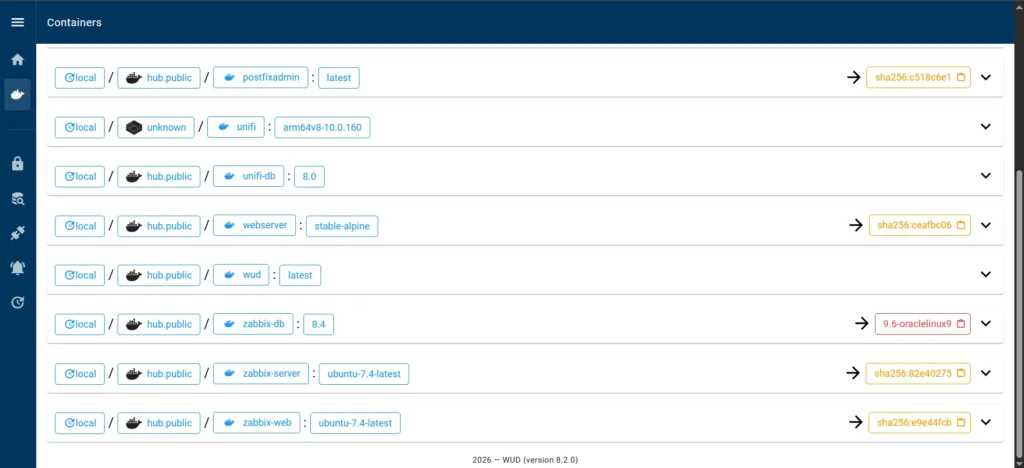
Update to a major version. I have a container with a mysql database of version image: mysql:8.4, but WUD offers to immediately update to version mysql:9.6, which is a major version and can lead to compatibility problems if you do it carelessly. It is better to avoid such updates by optimizing the update process to the latest minor version.
Update by digest. In the example of a Zabbix update where the image has the following entry image: zabbix/zabbix-server-mysql:ubuntu-7.4-latest, an update is offered, but it is not specified which version is the latest.
Specific updates. In the example of unifi-network-application which has the following entry image: lscr.io/linuxserver/unifi-network-application:arm64v8-10.0.160, thus, WUD cannot determine the next version for a complex tag of type arm64v8-10.0.160.
To resolve these, you need to use universal tags or add labels with regular expressions to unify version detection.
Notification Settings
Notifications are controlled by triggers, which must be configured according to the notification method. By default, triggers are not set, so the main window will be empty, while the creation of triggers occurs on the backend.
According to the documentation, the following environment variables are defined, which must be added to the docker-compose WUD file. Previously, I created an email on my mail server.
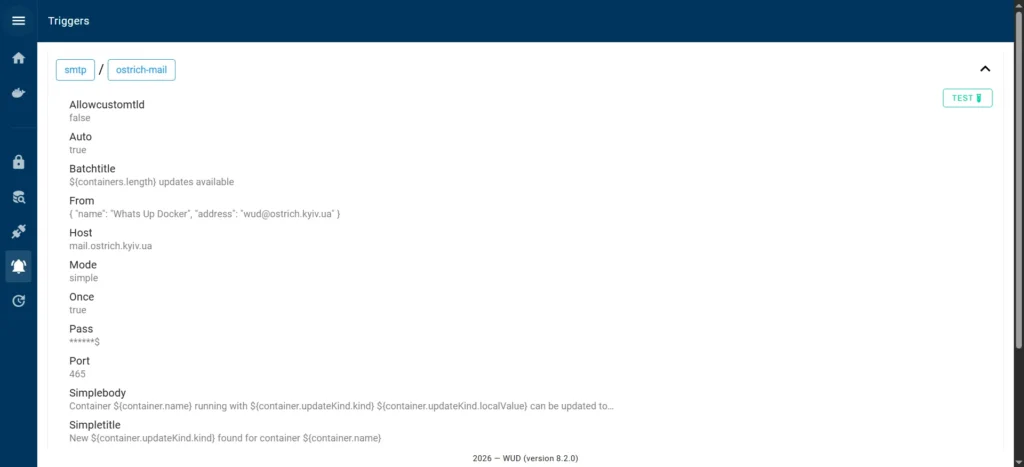
- WUD_TRIGGER_SMTP_OSTRICH-MAIL_HOST=mail.ostrich.kyiv.ua
- WUD_TRIGGER_SMTP_OSTRICH-MAIL_PORT=465
- [email protected]
- WUD_TRIGGER_SMTP_OSTRICH-MAIL_PASS=mysecretpass
- [email protected]
- WUD_TRIGGER_SMTP_OSTRICH-MAIL_FROM_NAME=Whats Up Docker
- [email protected]
- WUD_TRIGGER_SMTP_OSTRICH-MAIL_TLS_ENABLED=true
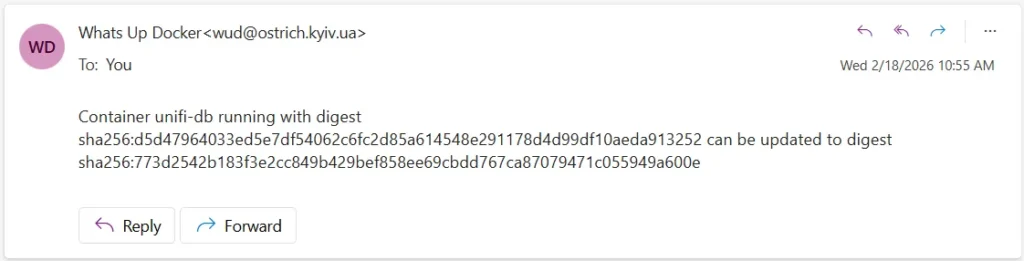
After reloading the container, the corresponding entry appeared in the triggers section. There is also a test button in the trigger itself. Since I received the email instantly, the trigger is working correctly and no additional verification is needed.
I hope the email template can be changed so that the data is not written on one line, but for now this is enough.
This way, you can proceed directly to updating containers.
Container Updates
I’ll start with the simplest options with the latest tag. In this case, just download the latest version of the container before rebooting, and the new instance will already be launched with the new version.
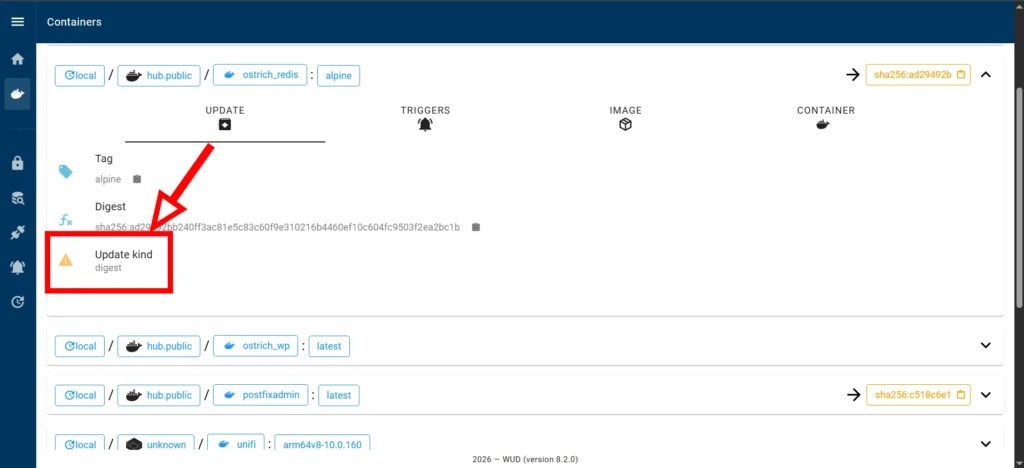
To update, you need to run two commands in the appropriate working directory.
docker compose pull redis
[+] pull
 ✔ Image redis:alpine           Pulled
And then run this container
docker compose up redis -d
[+] up 1/1
 ✔ Container ostrich_redis Recreated
You can also check the new version on the example of a redis container:
docker exec ostrich_redis redis-server -v
Redis server v=8.6.0 sha=00000000:1 malloc=jemalloc-5.3.0 bits=64 build=c3670bd9c9f57a33
As a result, update the list of containers in WUD. Opposite the radish container there will be an inscription: No update available. In general, you can update other containers with the latest tag in this way.
Such an update will not mean that WUD will determine them as the latest versions, due to the fact that it can compare the latest current version with the major version, which will be incorrect from the point of view of updating.
Updates within minor versions
You need to be careful when looking at major updates, they are usually displayed in red and have an exclamation mark. Since such updates are not allowed, you need to limit the check to only the current major version, in my case it is version 8.4.
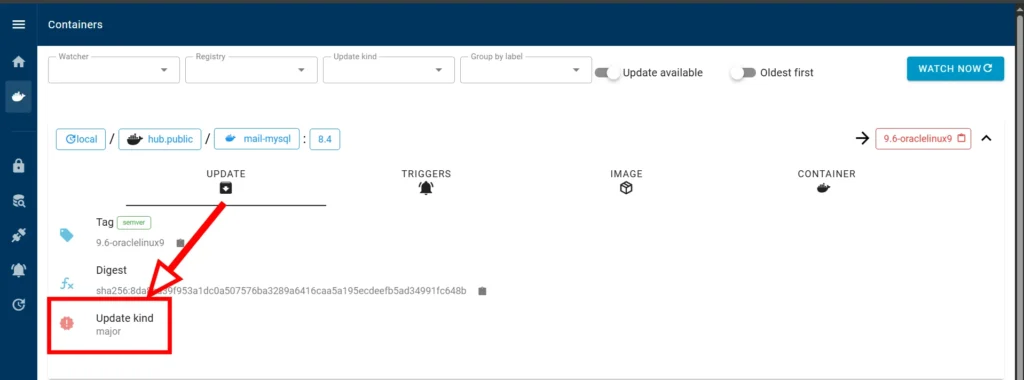
It is necessary to add a label to the docker-compose file, in the database definition block, which will limit versions within minor versions via a regular expression:
labels:
  - wud.tag.include=^8\.[0-9]+\.[0-9]+$
Since the latest version of MySQL 8.4.8 is currently installed, after applying the changes, the entry will disappear from the update list. I will write this entry to all my containers where this database is used.
Troubleshooting
The absence of warnings via the web interface does not mean that there are no such comments or errors, they may be, but through the web interface it is necessary to review each record for errors that nullify the monitoring.
For this, it is better to use the WUD container log file
docker logs -f wudBasic configuration information and warnings that need to be fixed will be displayed:
14:57:19.520  WARN whats-up-docker: local_unifi - No Registry Provider found
14:57:19.605  WARN whats-up-docker/watcher.docker.local: Error when processing (Unsupported Registry unknown) (container=local_unifi)
14:57:20.303  WARN whats-up-docker/watcher.docker.local: Error when processing (Request failed with status code 401) (container=local_ostrich_wp)
14:57:22.076  WARN whats-up-docker/watcher.docker.local: Error when processing (Unexpected error; no manifest found) (container=local_unifi-db)
14:57:26.965  INFO whats-up-docker/watcher.docker.local: Cron finished (12 containers watched, 3 errors, 3 available updates)
I will analyze each error individually and get rid of it
local_unifi – No Registry Provider found
The unifi-controller container is not hosted on Docker Hub, but on linuxserver, so the log shows that no provider is defined for the local_unifi container. According to the previous recommendation, you need to register on the GitHub server and create a token, which will then be available when you authorize on the LSCR server (LinuxServer Container Registry).
This data must be added to WUD docker-compose.yml
environment:
...
  - WUD_REGISTRY_LSCR_PRIVATE_USERNAME=username
  - WUD_REGISTRY_LSCR_PRIVATE_TOKEN=token
...
After restarting the container, we got rid of the following warnings:
- WARN whats-up-docker: local_unifi – No Registry Provider found
- WARN whats-up-docker/watcher.docker.local: Error when processing (Unsupported Registry unknown) (container=local_unifi)
Request failed with status code 401
If your service is compiled locally from a Dockerfile (for example, you add the Redis module to WordPress), standard monitoring will not work. You will receive 401 or 404 errors.
I did not find the only correct solution, so I will temporarily ignore the custom container by adding the following label.
labels:
  - wud.watch=false
Unexpected error; no manifest found
This is a specific error that occurs when WUD finds an image but cannot get its manifest for the arm64v8 architecture. Since it is on the Raspberry Pi 5 (arm64), this is a classic problem with images that do not have explicit multi-architecture support.
In the original docker-compose file, I used an image without specifying the architecture:
image: mongo:8.0To get rid of the error, I replaced the image name with an explicit architecture pointer
image: arm64v8/mongo:8.0Conclusions
Balance between control and automation: WUD proved that monitoring can be informative without being aggressive. It is the perfect “assistant” that points out where attention is needed while leaving the final decision to the administrator.
ARM Architecture Specifics: Running on a Raspberry Pi 5 requires focus on manifests and tags. Using explicit architecture pointers (as with arm64v8/mongo) is key to keeping logs error-free.
Flexibility through labels: Docker’s labeling system allows WUD to be transformed into an intelligent tool. Utilizing regular expressions to ignore major version jumps (e.g., for MySQL) saves the database from potential crashes.
Clean logs for stability: Configuring providers (Docker Hub, LSCR) and properly handling local WordPress builds allowed us to clear all WARN statuses, turning monitoring into a reliable source of truth.