
Introduction
When I bought the Ubiquiti EdgeRouter X router, the results disappointed me: the efficiency was only 40-50%. In this article, I will show you how to enable EdgeRouter X hardware offload to make it work at 100%!
What is hardware offload?
Hardware offload is used to perform router functions at the level of specialized hardware modules, instead of processing them by the central processor. This allows you to significantly increase network performance and bandwidth.
Starting with the EdgeOS firmware version v1.9.1, all EdgeRouter models support some type of hardware offload. The latest firmware version available at the time of writing this article is v2.0.9-hotfix.7. This means that I can apply the recommendations to improve the speed of my router.
While this guide focuses on firmware v2.x, the latest update brings even more changes. Check out my Overview of the new EdgeRouter OS v3.0 to see the new UniFi-style interface and Dark Mode.
EdgeRouter X and Hardware Offload
My EdgeRouter X is built on a MediaTek chip that supports hardware acceleration for VLAN and NAT. This means that you can port these functions to the ASIC using the hwnat command. In addition, hardware offload also supports other tunneling functions such as GRE and PPPoE.
How to enable hardware offload?
To enable hardware offload, you need to use the command line interface (CLI) or the EdgeOS graphical interface:
Through the web interface
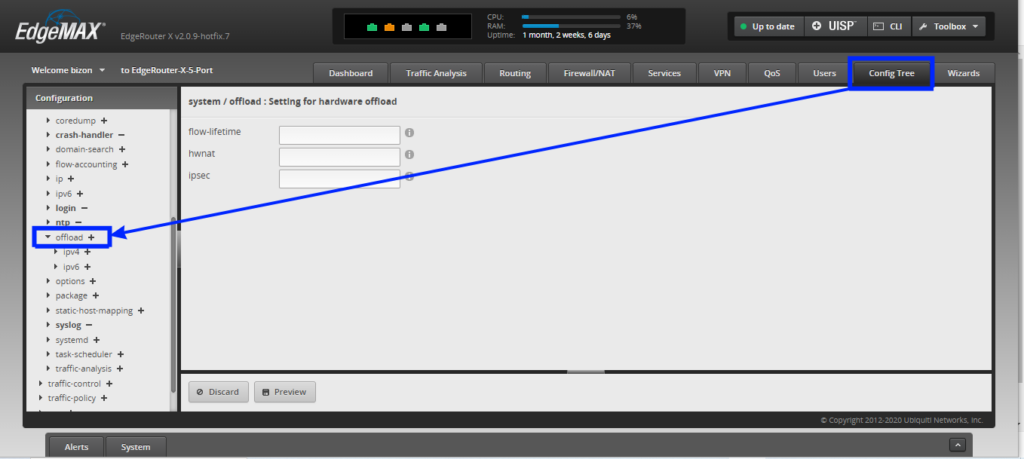
- Go to the Config Tree menu and in the Configuration block, scroll down and find the Offload parameter
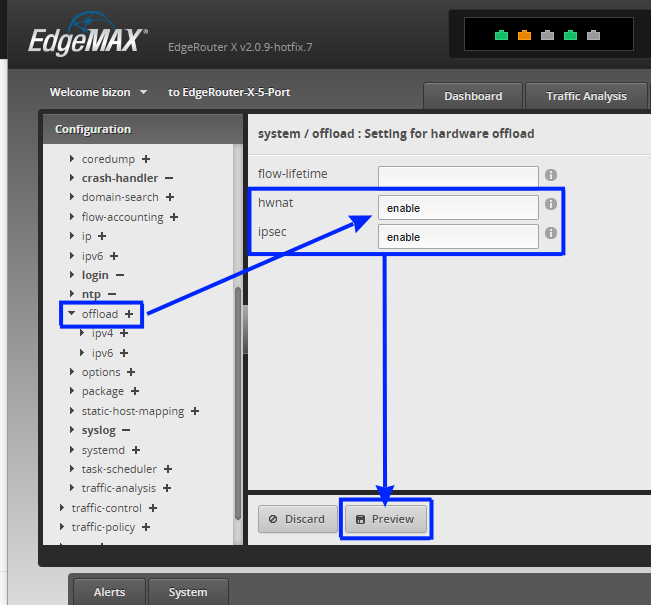
- Opposite hwnat and ipsec, enter enable, to apply the changes, click the Preview button
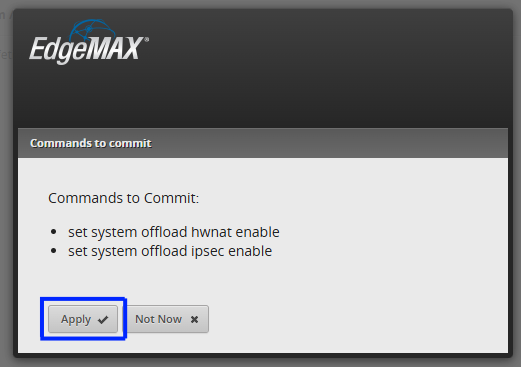
- In the Commands to Commit window, click Apply to apply the changes
- You will see the message: The configuration has been applied successfully
Through the CLI
To open the terminal window, click the CLI button

You need to enter your login and password, and then enter the following commands in sequence
set system offload hwnat enable
commit
save
Check settings
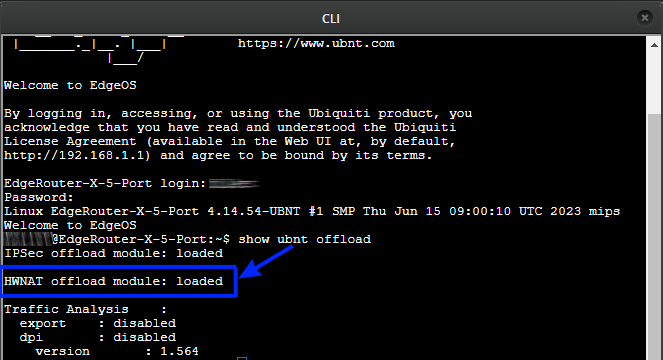
Checking the result
After activating hardware offload, I recommend re-testing the Internet speed via speedtest.net or any other speed test service. In my case, the throughput increased to 90-95% of the declared by the provider, which significantly improved the stability and performance of the network.
Conclusion
If you have an EdgeRouter X and you have noticed poor network performance, enabling hardware offloading can significantly improve the speed of the device. This simple setting allows you to use the power of the router more efficiently and get the most out of your Internet connection. Don’t forget to update the firmware to the latest version to use all the optimization features!