
Logitech recently announced a new generation of its productivity line. The official global announcement took place on May 26, 2026, and in this article, I present the first comprehensive Logitech Signature Comfort M840 L review in Graphite. I will analyze in detail how the automatic synchronization works with my MX Keys S keyboard, test the local Flow ecosystem, and talk about the main real-world advantages of this new mouse model.
Why did I decide to upgrade my mouse?
My main work setup includes a Logitech MX Keys S keyboard, which perfectly supports switching between multiple devices. Recently, after another firmware and software update, a great feature appeared: automatic synchronization of switching between the keyboard and mouse (when you switch the keyboard to another PC, the mouse automatically “follows” it).
Before that, I used a Logitech Signature M650 L mouse. This is a great mouse for a large hand, but it has one significant drawback – the lack of Easy-Switch support. It is tied to a single communication channel. Because of this, I had to keep several receivers on the table or constantly reconnect devices, which destroys the whole concept of a seamless workspace. That is why my choice fell on the new M840 L, which solves this problem and supports simultaneous work with three devices.
Logitech Easy-Switch technology is a proprietary solution that allows you to instantly switch between multiple devices (typically up to three) with a single press of a dedicated button. It eliminates the need to reconnect peripherals each time, ensuring seamless operation across platforms: you can control your Windows work computer, your home Mac, and even your tablet or smartphone. With multi-platform support and a combination of Bluetooth and the Logi Bolt/Unifying radio receiver, Easy-Switch significantly improves productivity, making multitasking as smooth and comfortable as possible.
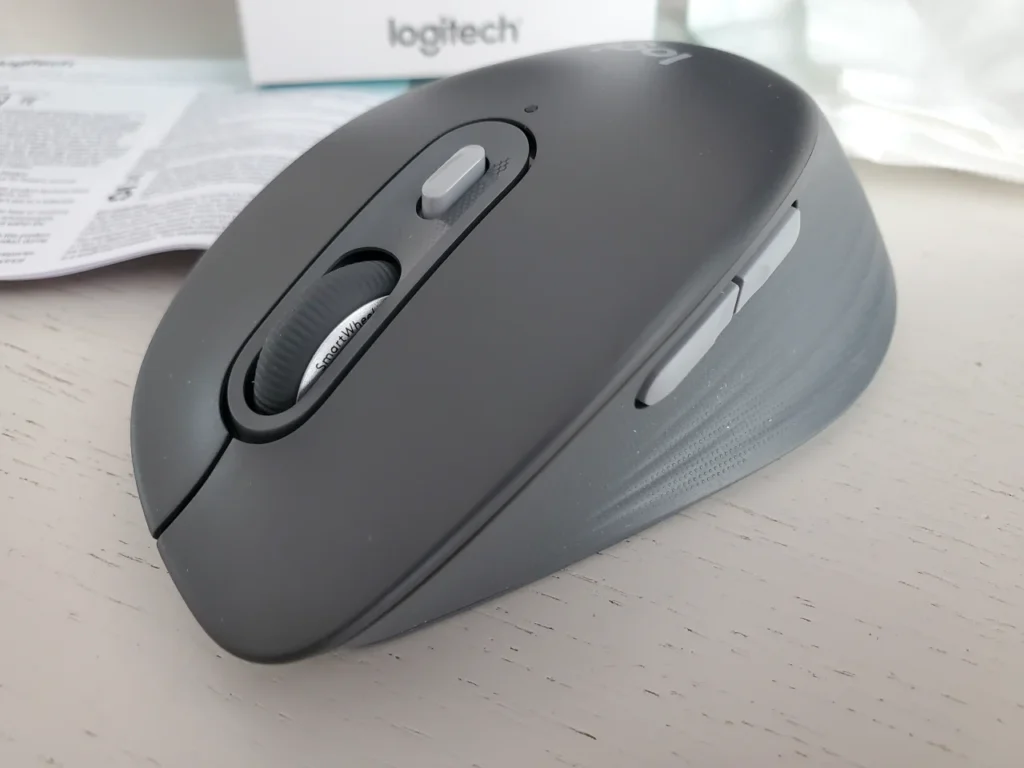
Logitech M840 L Specifications
According to the manufacturer’s website, the mouse has the following specifications:
Sensor & Tracking
- Sensor Technology: Pluto ONE
- Nominal value: 1000 DPI
- DPI (Minimal and maximal value): 400-4000 DPI (can be set in increments of 100 DPI)
- Tracking technology: Logitech Advanced Optical
Buttons
- Number of Buttons: 6 (Left/Right-click, Scroll-wheel middle click, side buttons, DPI button)
- Gesture button: No
- Number of programmable buttons: 4 (Scroll-wheel middle click, side buttons, DPI button)
Scroll Types
- Scroll Wheel: SmartWheel
- Horizontal scroll: Virtual
- Thumb wheel: No
Features
- Customization app: Logi Options+, Logi Tune
Battery
- Battery type: 1 AA battery (Alkaline Battery)
- Battery life: 24 months
- Battery life with Logi Bolt USB Receiver: up to 24-months
- Battery life with Bluetooth®: up to 24-months
Connectivity
- Connection Type: Bluetooth Low Energy Technology
- Wireless range: 33-ft (10 m)
- Unifying-ready mouse: No
- Unifying-ready receiver: No
- Multi-device pairing: Up to 5 devices
System Requirements
- Bluetooth: Required: Bluetooth Low Energy, Windows 10, 11 or later, macOS 12 or later, Linux*, ChromeOS*, iPadOS* 15 or later, Android™ OS* 12 or later. (*Device basic functions will be supported without software for systems other than Windows and macOS)
- Logi Bolt USB receiver: Compatible with Logi Bolt USB Receiver (not included), Not compatible with other Logitech USB receivers.
- Customization app: Logi Options+, Logi Tune
- Certified for: WWCB, Engineered for Intel Evo laptops
Logitech M840 L Unboxing
The M840 L continues Logitech’s philosophy of modern minimalism. The Graphite color matches my MX Keys S keyboard perfectly, creating a unified visual ecosystem on my desktop. The “L” version is traditionally designed for medium to large palms, which is important for comfort during long work sessions.
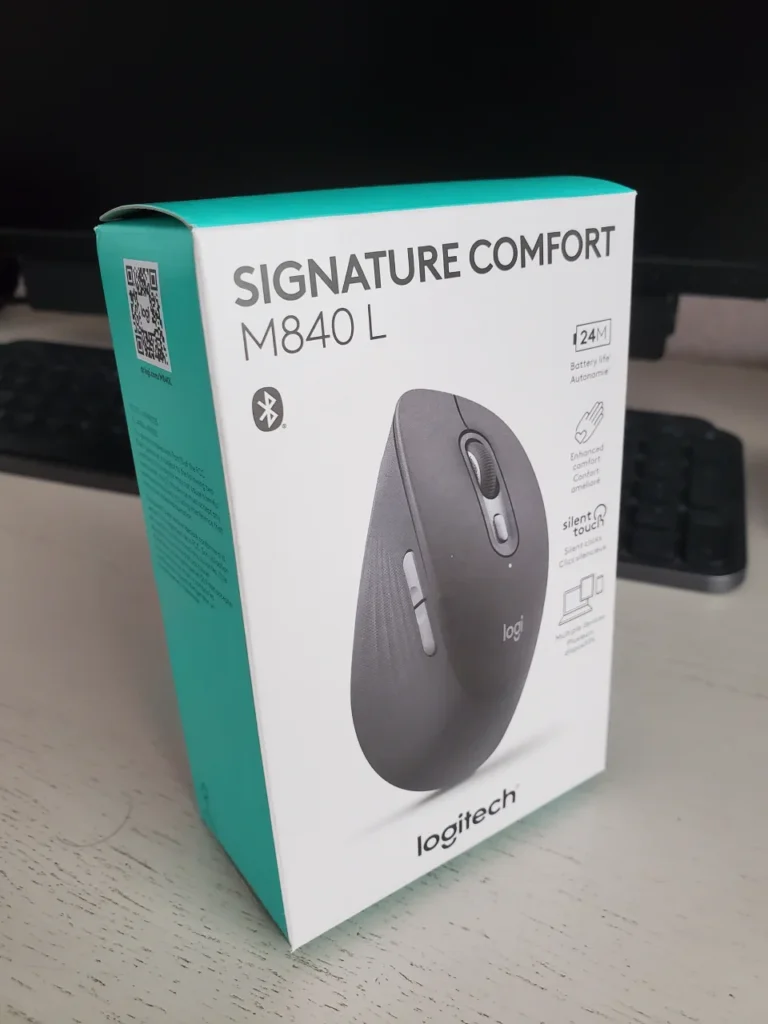
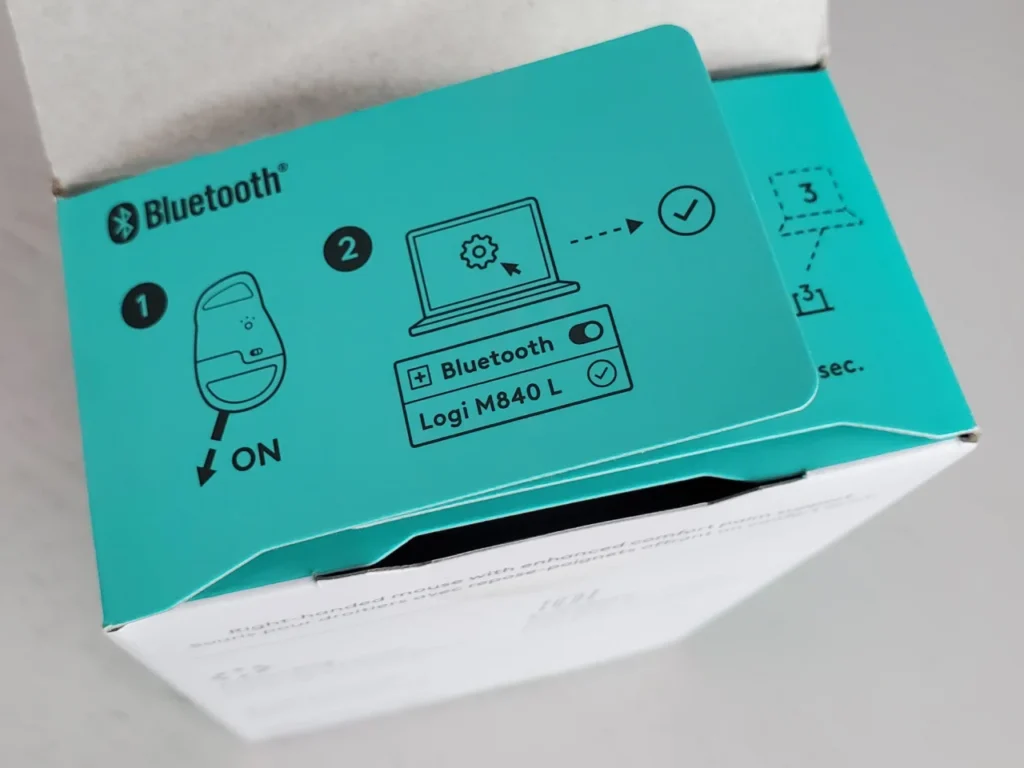
For interactivity, Logitech printed step-by-step instructions on the inner side elements of the box, allowing the user to get started very quickly after unpacking.
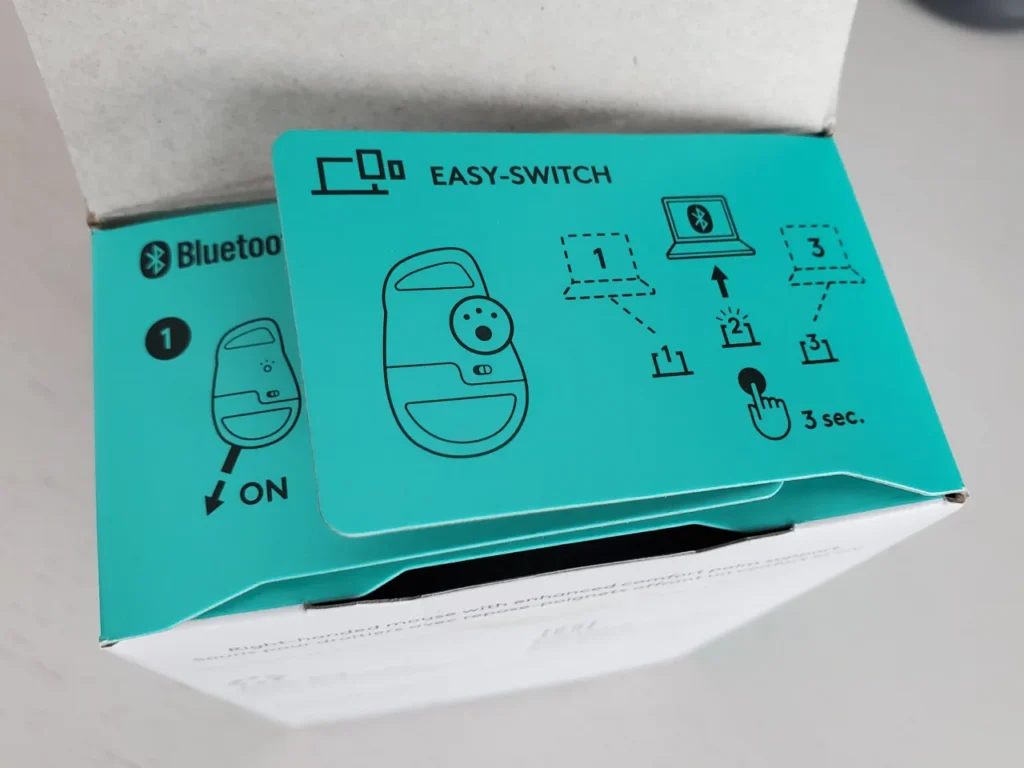
Switching between channels is done by briefly pressing the Easy-Switch button, while a long press switches the mouse to the corresponding channel. In my opinion, it is very well illustrated.
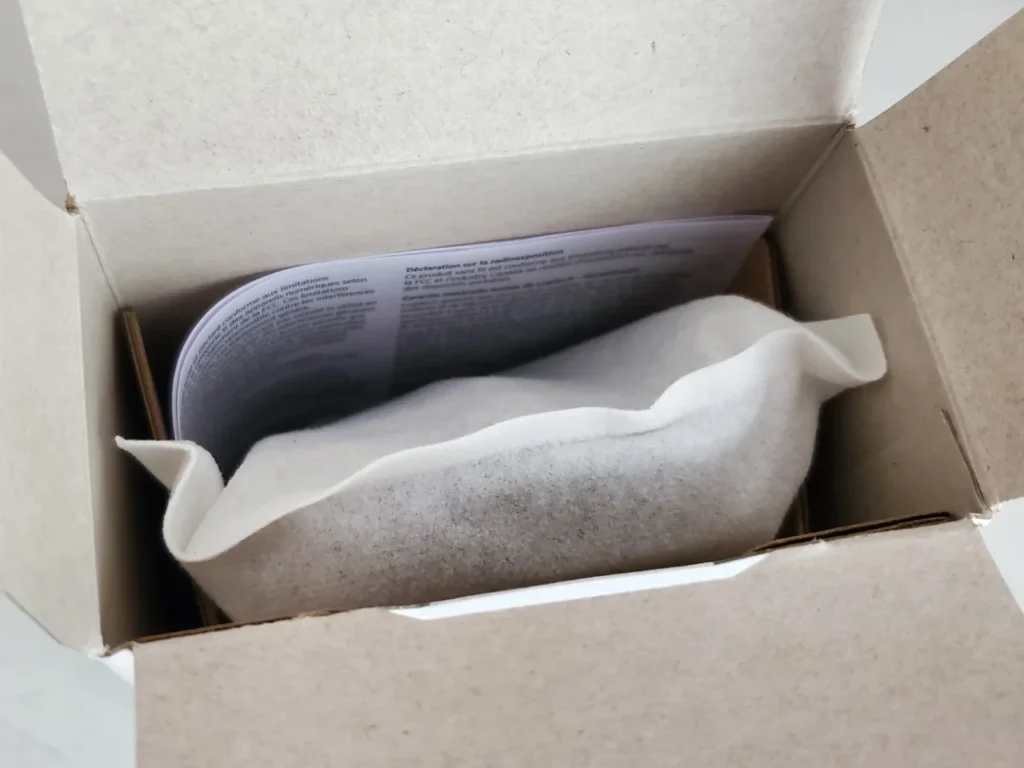
The box contained a mouse packed in a cloth bag and documentation.
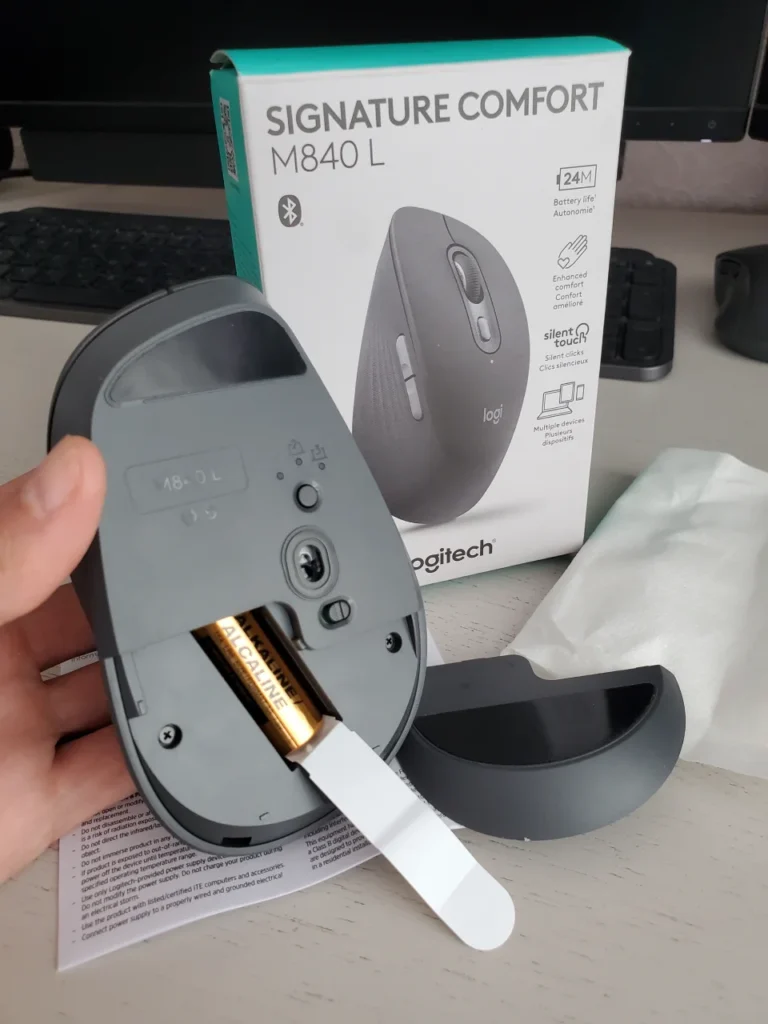
When I opened the battery compartment to remove the protective film, I noticed that the Logi Bolt receiver was not included, as it was stated when ordering, but I was surprised that there was not even a section. That is, even if I bought it as a separate accessory, there would be no way to hide it for transportation.
Conditions for automatic synchronization
In order for the magic of automatic switching between the MX Keys S keyboard and the M840 L mouse to work, you need to meet a few conditions. Here is my checklist for setting up on Windows:
- A single ecosystem: Both computers, for example, a work laptop and a home desktop, must be running Windows 10 or 11. These devices must also be on the same local network, and the network connection setting must be “Private” so that both devices can ping.
- Logi Options+: The devices must have the latest version of the Logi Options+ application installed. The same account must also be logged in.
- Pairing: Both the keyboard and mouse must be paired with both PCs. The most stable option is to use the proprietary Logi Bolt receivers, but Bluetooth also works fine.
It is important to check the keyboard firmware, because in the latest version from April 8, 2026, there were changes to improve the work with the Easy-Switch function.
MX Keys S Firmware Release Notes
This update prepares your keyboard for the upcoming enhanced Easy-Switch feature, which allows you to pair your mouse and keyboard to move them between hosts by simply pressing the Easy-Switch key on your keyboard. While this firmware is laying the groundwork today, this feature will be officially unlocked with the release of Logi Options+ version 2.3 by the end of April.
Logitech flow connection
Logitech Flow is a software feature in the Logi Options+ utility that unites up to three computers (on Windows and/or macOS) into a single seamless workspace, allowing you to control them with a single mouse and keyboard. When you move the cursor beyond the edge of the screen of one PC, it instantly appears on the other, and the keyboard automatically switches to follow the mouse. In addition to convenient navigation, the main advantage of Flow is the ability to directly copy and paste text, images and files between different computers over your local network, eliminating the need to use flash drives, instant messengers or cloud storage for quick data exchange.
I connected the M840 L mouse and MX Keys S keyboard to my laptop via Bluetooth on channel 1, and to my PC via the Logi Bolt receiver on channel 2. In the Logi Options+ program, the connected devices look like this
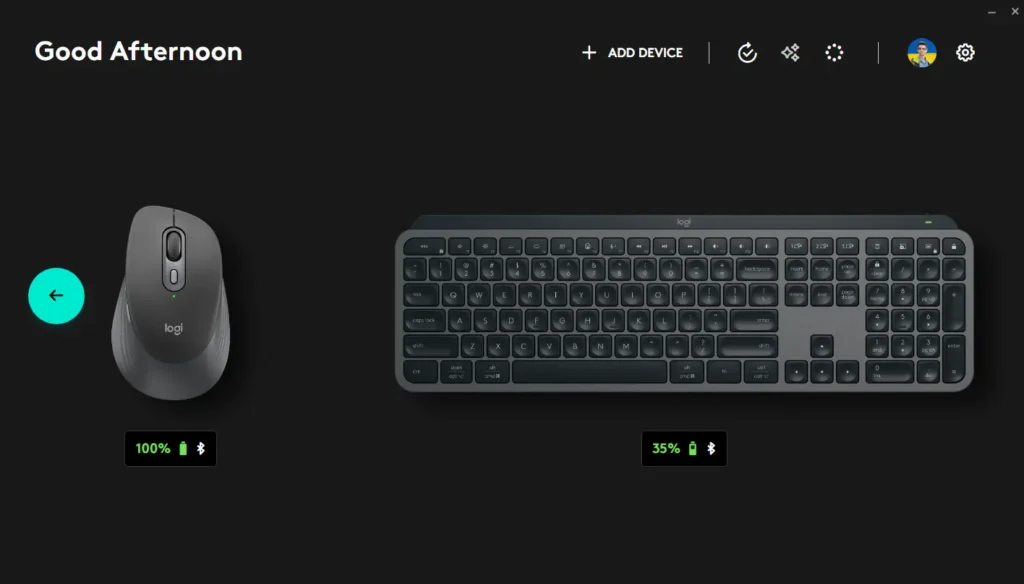
The Flow function is located in the mouse settings, so you need to click on the mouse and select this function in the window.
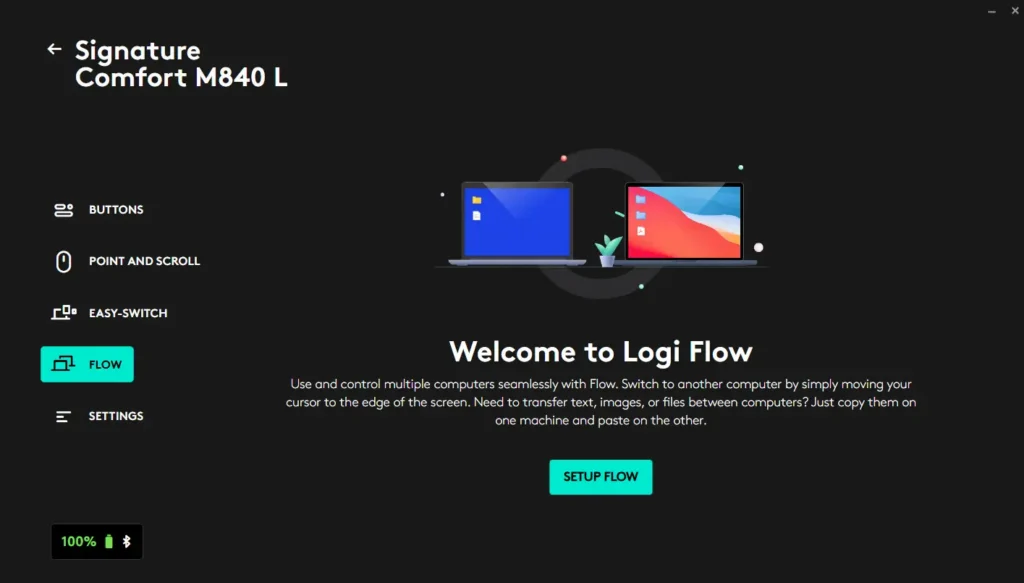
The initial screen will display an interactive introduction to how this feature works, and the only button to start the connection is “Setup Flow”. The second PC was detected almost instantly!
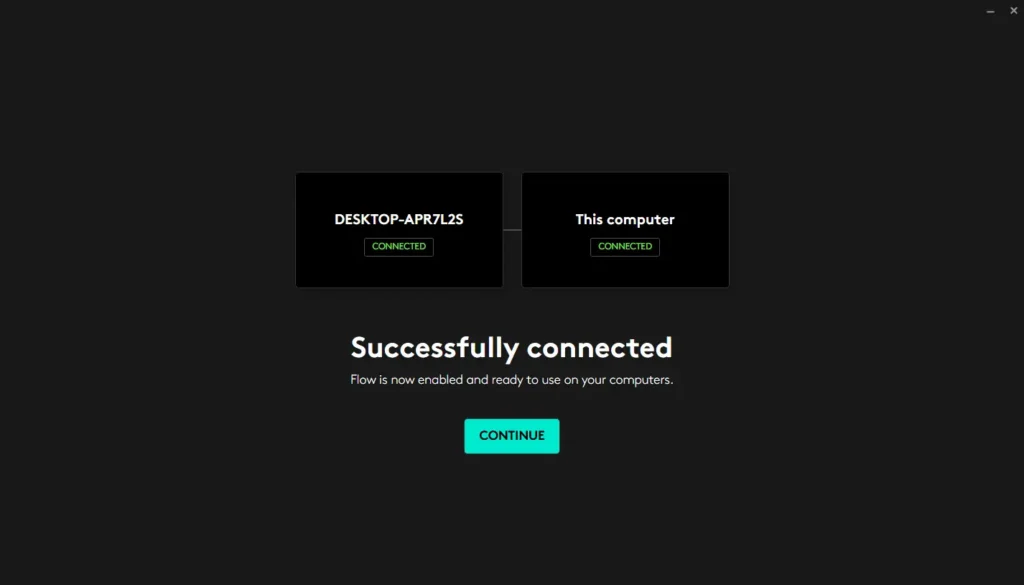
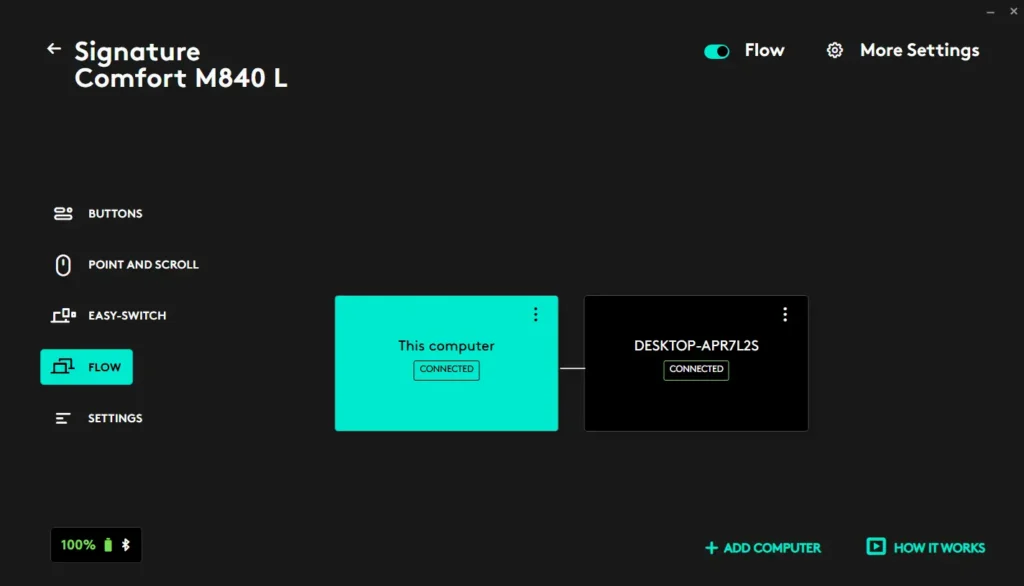
After successful connection, you can determine the position of the displays to switch devices correctly. By default, the host is on the right, but I moved it to the right for convenience. Depending on which device you are configuring, you can interactively move the screens as you see fit.
The last setting is in the “More Settings” section. By default, the “link keyboard” function is disabled, I enabled it, and the keyboard immediately synchronized with the mouse. Also, for convenience, you can additionally select to switch between devices when pressing the CTRL button, this will act as a safety feature when working with the mouse cursor closer to the edge of the screen, so that the switching does not occur uncontrollably.
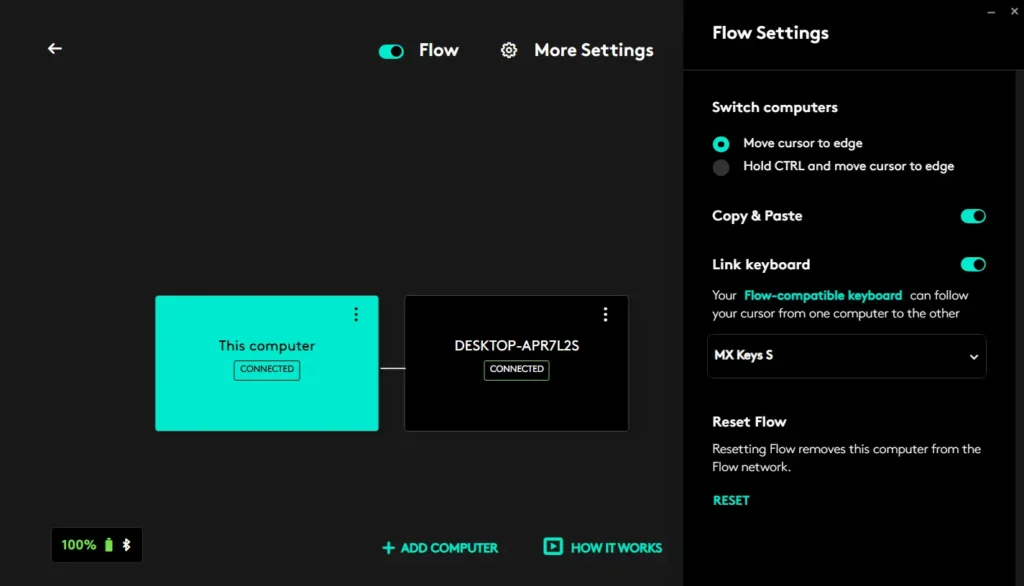
Thus, when switching between screens, not only the mouse but also the keyboard is switched. The switching also happens almost instantly, but sometimes it can take up to a second.
Logitech flow clipboard
Data exchange via Logitech Flow occurs exclusively on the local network. This is a direct (Peer-to-Peer) connection between computers. Logitech servers are used only to authorize your account in the Logi Options+ program and download updates.
None of your files, text from the clipboard or cursor movements are transmitted over the Internet and do not reach the company’s servers.
I conducted an experiment, I copied a file of 1.2 GB to record the data transfer speed.
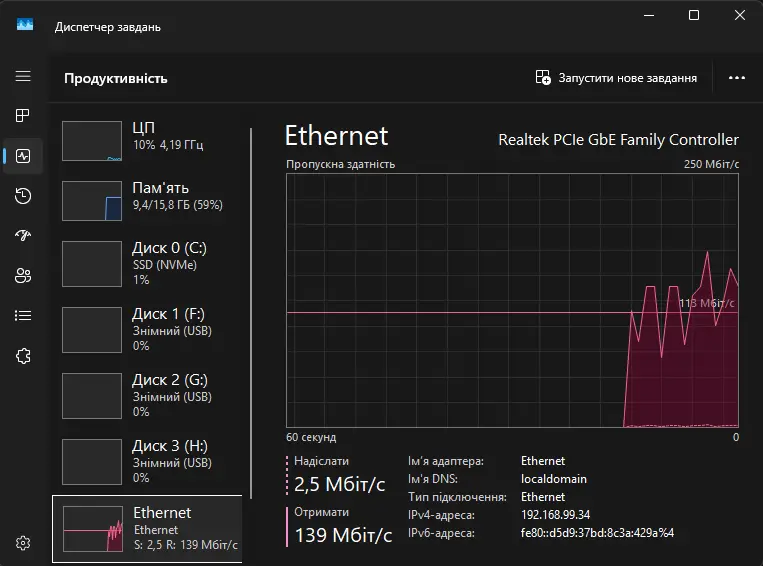
The data transfer speed depends on the connection speed. In this case, my PC was connected via Ethernet at a speed of 1Gbps, and my laptop via Wi-Fi and had a Tx 906 / Rx 960 Mbps connection.
Having visually looked at the data transfer metrics, which averaged 140 Mbps, I can say that I am satisfied with the result.
Conclusions
Summing up my experience of updating my work setup, I can confidently say that the switch to the Logitech Signature Comfort M840 L was fully justified. This device successfully closed the main, in my opinion, drawback of the previous model M650 L – the lack of Easy-Switch technology. Now working with multiple devices has become truly seamless. Thanks to perfect synchronization with the MX Keys S keyboard, the need to keep extra receivers on the table or constantly switch channels manually has disappeared forever.
The stability and convenience of the Logitech Flow function deserves special attention. It not only provides smooth control of two PCs at the same time, but also guarantees secure file exchange exclusively within your local network, without involving cloud servers. The data transfer speed of 140 Mbps in a mixed network (Ethernet + Wi-Fi) is quite comfortable for everyday work tasks and transferring heavy files.
What I liked the most:
- True multitasking: Automatic mouse and keyboard switching between screens works almost instantly.
- Design and ergonomics: The Graphite color perfectly complements the MX Keys S, and the “L” size is great for long work.
- Setup speed: Provided the LAN is configured correctly (without isolating clients), the connection process is intuitive and fast.
Things to consider:
- The only noticeable compromise was the lack of a compartment in the mouse body for storing the Logi Bolt receiver (which is also not included). If you plan to carry the mouse with you a lot and use the receiver instead of Bluetooth, this can add some inconvenience.
Overall, the Logitech Signature Comfort M840 L is a great investment in your own productivity. If, like me, you work in a hybrid environment with multiple computers and are looking to create a single, neat, and most efficient workspace, this upgrade is definitely worth your attention.