Introduction
In today’s world, where cyberattacks are becoming increasingly sophisticated, account security is more important than ever. One of the most effective ways to protect user accounts is through Multi-Factor Authentication (MFA). Zabbix, a popular monitoring system, now supports TOTP (Time-based One-Time Password). In this guide, I’ll show you how to enable MFA in Zabbix to ensure that your infrastructure monitoring remains secure from unauthorized access.
Enabling Global MFA Settings
First, log in to Zabbix using a super admin account, since only super admins have access to global configuration settings.
- Navigate to Users → Authentication.
- Open the MFA settings tab.
- Enable Multi-factor authentication by checking the corresponding box.
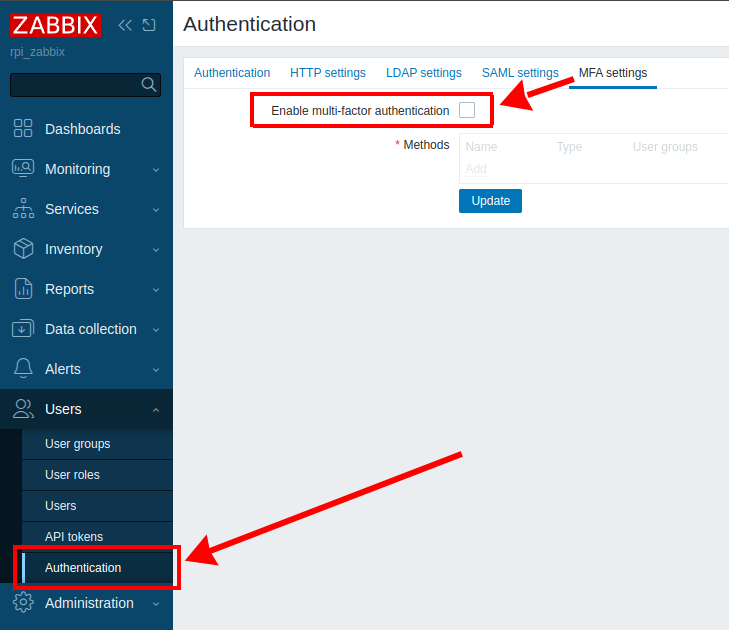
This allows Zabbix to use multi-factor authentication for user logins. Activate checkbox and add authentication method
Notifications: Once secured, make sure you’re alerted to issues by configuring email notifications in Zabbix.
Adding an Authentication Method
After enabling MFA, you need to add a method that Zabbix will use to process authentication requests.
Configuration:
- Click Add under the Methods section.
- In the dialog window, enter the following:
- Type:
TOTP (Time-based One-Time Password) - Name:
Zabbix RPI— this name will be displayed in your authentication app (e.g., Google Authenticator, Authy) - Hash function:
SHA-256 - Code length: leave it as
6— this is the standard code length for TOTP
- Type:
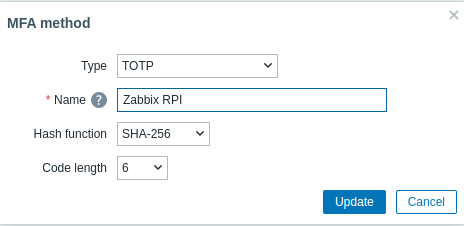
Note: Once this method is added, users allowed to use MFA can set up their mobile authentication apps accordingly.
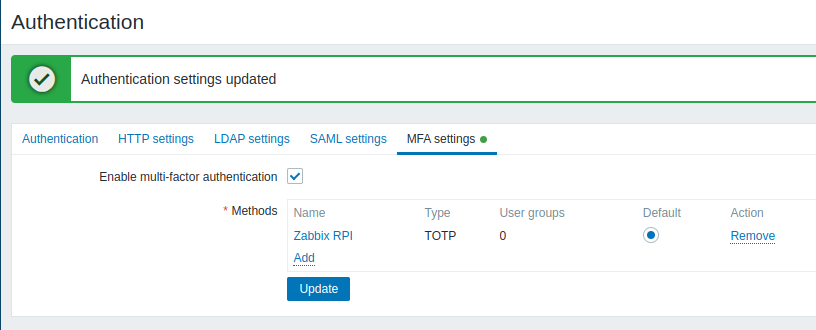
In this case there are nom users, so we need to add group for mfa and add users to this group.
Security & Access: Strengthening your login is vital, but don’t forget to setup Zabbix local network access only to reduce the attack surface.
Creating a User Group for MFA
Zabbix allows you to enforce MFA at the group level, rather than for each user individually. This makes it easy to manage which users are required to use two-factor authentication.
- Go to Users → User groups.
- Create a new group with the following parameters:
- Group name:
TOTP group - Users: add the user
Admin(or any other user who should use MFA) - Multi-factor authentication: select the previously created method (
Zabbix TOTP) if it’s not set as default
- Group name:
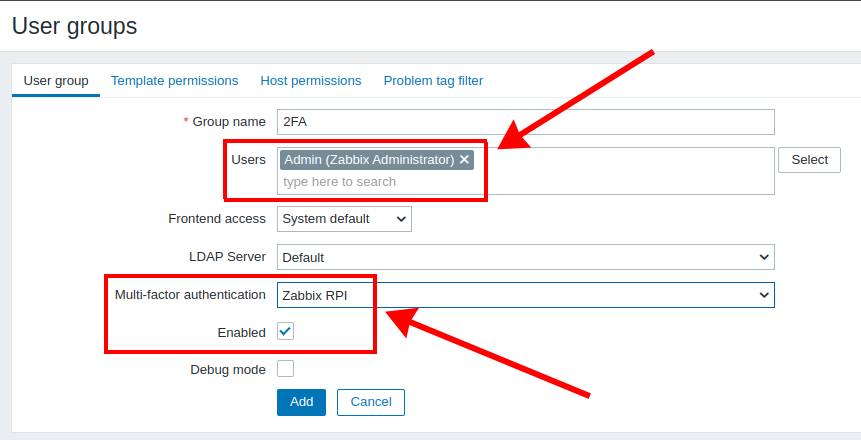
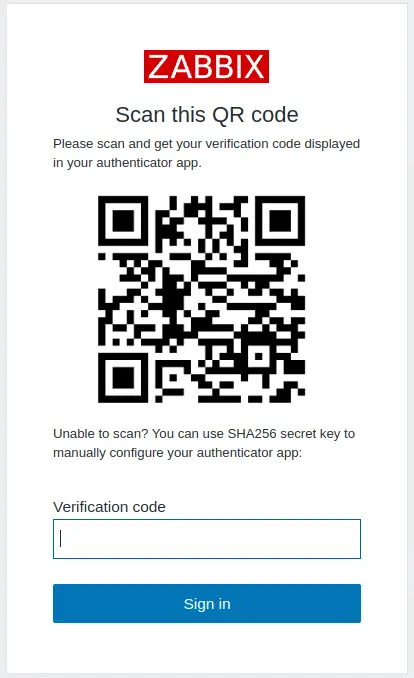
Now, all users in this group will be required to configure MFA in their profiles — for example, by scanning a QR code in their mobile app.
Important: MFA settings are applied per group, not per individual user. So, make sure users are added to the correct group.
Proactive Monitoring: Security often involves tracking hardware; see how to start monitoring Raspberry Pi CPU temperature with Zabbix.
Check result
To test the operation, you must log out of your account and log in again to initialize the authenticator token creation process.
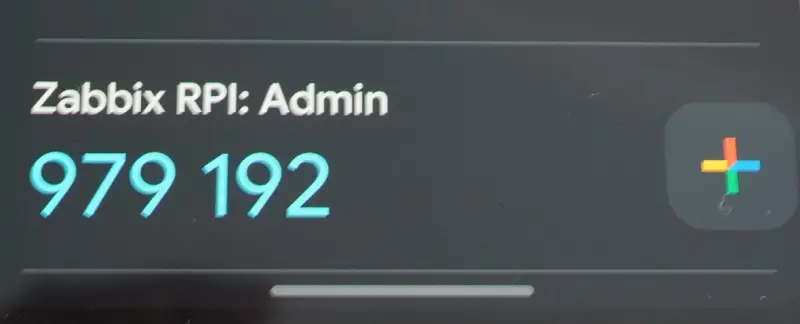
My Google Google Authenticator got next record:
Conclusion
Enabling multi-factor authentication is one of the simplest and most effective ways to protect your Zabbix monitoring system from unauthorized access. With TOTP and group-based policies, the setup takes just a few minutes but significantly enhances your security posture.
Time Sync: For TOTP to work correctly, your system time must be accurate. Check how to fix your Zabbix 24-hour time format for better logging.